Cancel Visma Sales Flow
Content
1.2.1 Making changes in ePack. 3
1.2.2 Explanation Statuses in ‘input invoicing orders’ 6
1.2.3 Filters in in ‘input invoicing orders’ 7
1.1 Idea
Orders who are not delivered in ePack (dispatch screen ‘zero line’, but delivery date is today (1)) are not exported to Visma (via night processing) and a follow up of orders who are not exported to ePack FE because API failed. Or when a mistake is made (FE prices) the order can be sent back to ePack from Visma (2).
(1)
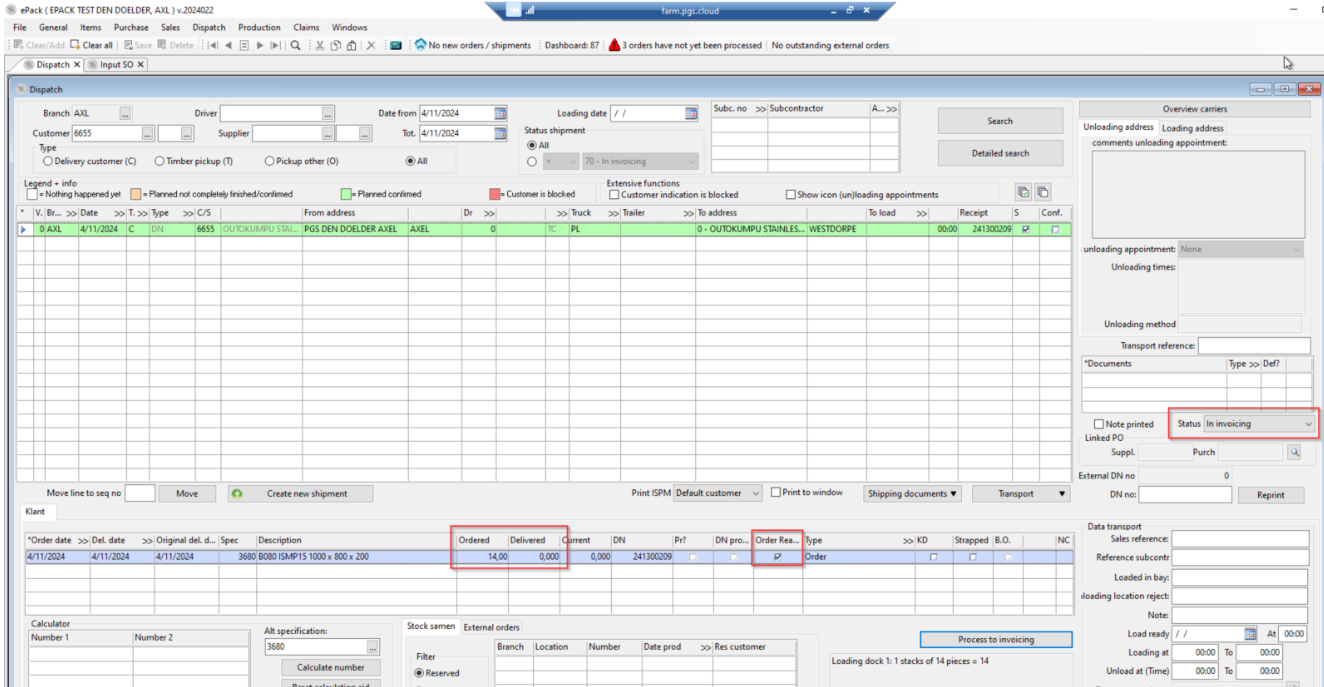
(2)

Do NOT delete the order in Visma! Cancel the order via actions>cancel order!!

1.2 Explanation ePack
For these
cases mentioned above, a notification will be shown in the dashboard in ePack
and can be followed up in the screen ‘input invoicing orders’. 
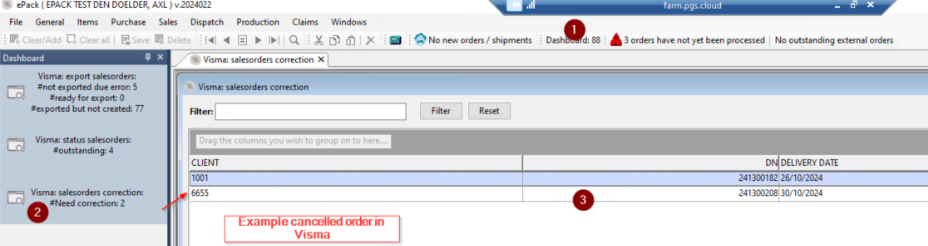
Exception: orders cancelled in Visma will have to be followed up in the ‘dispatch’ screen – they will get a status ‘to be corrected’ in the dispatch screen. Note, you will also get a notification in the dashboard – you can click on it (in the dashboard) to go directly to the order (3).
The ‘to be corrected’ status is assigned when a sales order is cancelled ( not deleted! ) in Visma (then a status 202 is sent from Visma > ePack).
This status can NOT be chosen manually in ePack (this status is only set when status 202 is received).
Note, only if you check of the order ready box it can be sent again to Visma (manually or via night processing) – status will automatically change to ‘in invoicing’ afterwards.
1.2.1 Making changes in ePack
If you want to change the quantity (FE for a 0-line order) you have to go to ‘input invoicing orders’ there you’ll have to delete the line and the order, then in dispatch you can uncheck 'order ready' -also see screenshots below. This is only possible if the status is on 'to be forwarded'/'invoice error'/'forwarding failed' – in the screen ‘input invoicing orders’, because then the sale/shipment does NOT exist in Visma. Be aware the status in shipment (in ‘dispatch’ screen) will remain on 'in invoicing' (except for exception above).
Other changes than quantity can be done in ‘input invoicing order’ or if necessary, you can follow the steps from ‘to change to quantity’ and change the order itself in ePack (after clicking off the ‘order ready box’.
FE you can change the status in shipment (dispatch screen ePack) to 'no invoice'.


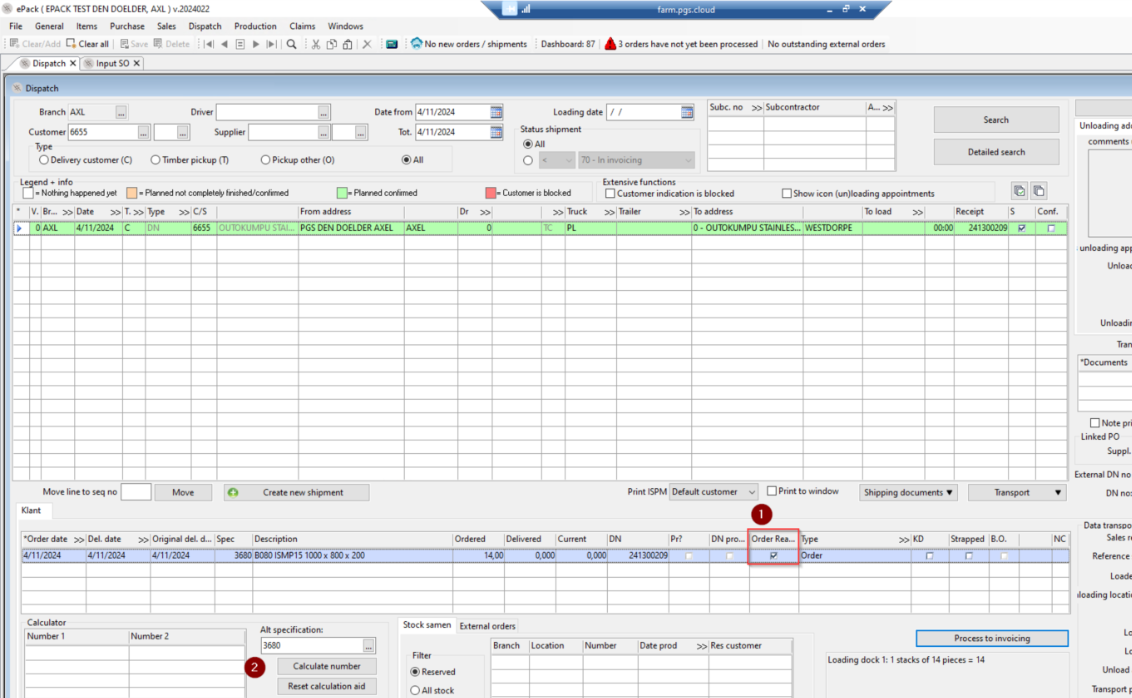
When the 'order ready' checkbox is unchecked it can be sent back to Visma (via night processing or 'process to invoicing').

The 'export' button in ‘input invoicing orders’ can be manually clicked if the status is on 'forward failed'/'invoice error'/'to be forwarded' . Then the order is directly sent to the Visma's API.

1.2.2 Explanation Statuses in ‘input invoicing orders’
1.2.2.1 Forwarding
This order is ready to go with the next day processing. If one does via the 'export' button, then this order is forwarded directly to the API
Things can still be changed in ePack.
è Users will likely never see this status.
1.2.2.2 Forwarding failed
EPack attempted to send order to API but failed.
Things can still be changed in ePack.
Will be picked up in the next night processing to be sent ‘again’, if this is a reoccurring problem please contact raptor@groupepgs.com.
1.2.2.3 Forwarded
This order has been successfully forwarded to Visma's API.
Nothing can be changed in ePack anymore.
1.2.2.4 Invoice created
This order has been effectively created in Visma (meaning the order and shipment is made in Visma). This status is set when ePack receives a status 200 from Visma (automated process). As long as ePack has not received this status the status remains on 'Forwarded'.
Nothing can be changed in ePack anymore.
1.2.2.5 Invoice error
The API of Visma could not create the sale/shipment due to some problem (e.g. master customer code not known, 0 lines), A status 500 is sent to ePack and the invoice order is then set to this status (automated process).
Things can still be changed in ePack.
1.2.3 Filters in in ‘input invoicing orders’

- Not processed: display only orders where this has not yet been sent to Visma – changes still can be made in ePack (orders with status Forwarding, invoice error or forwarding failed).
- Processed: show orders where the order has been sent to Visma – no changes can be made in ePack (orders with status invoice created or forwarded).
- All: display all orders with all statuses.
1.2.4 Text box error

If the status is set to 'invoice error' this box will also show what caused it.
(If ePack receives a status 500 – automated process.)
1.2.5 Export to Visma

This button allows you to forward this order instantaneously to Visma.
Button is only available for the following statuses:
- Forwarding
- Forwarding failed
- Invoice error
1.2.6 Dashboard
In the dashboard, 3 items have been added so that you can track sales order statuses. If you click on the item the details are displayed and you can open the invoice order as well.

Export status to Visma, in this there is an overview how many sales orders have not been sent to Visma due to an error in the billing order (such as 0 lines) or how many are ready to send to the API or how many have been sent but have not been created in Visma.
- User can see how many invoice order are on status 'invoice error', this lets them know if intervention is needed
- User can see how many invoice orders are on exported but not created in Visma. (status 'forwarded')
2. How many are still open in Visma and thus still need to be processed (order and shipment is made in Visma but invoices has not been made).
3. Sales orders cancelled in Visma that needs to be changed in ePack.
- User can see how many shipments are on status 'to be corrected', this tells them that intervention is needed.
1.3 Invoiced in Visma
When a invoice is made in Visma (= sales invoice is released (in the logistics part)) it will send a ‘status 201’ to ePack. Then the history is written, the shipment (in dispatch screen ePack) is set to status 'invoiced', the order is deleted in ePack and the outstanding balance can be seen via the customer file.


