Input repairs per day per shift
Input repairs per day per shift / Entrées de réparations par jour et par équipe / Ingave reparaties per dag per ploeg / Eingabe Reparaturen pro Tag pro Schicht
Mind! Make sure that the repair settings are correct (https://www.getitdone.be/knowledge/article/214)
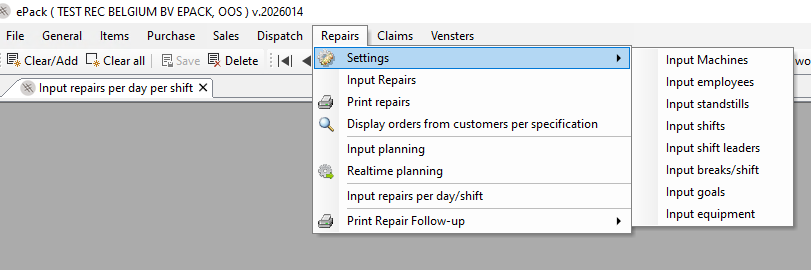
After the repairs have been entered (Input repairs), you can enter the daily repairing report.
Header
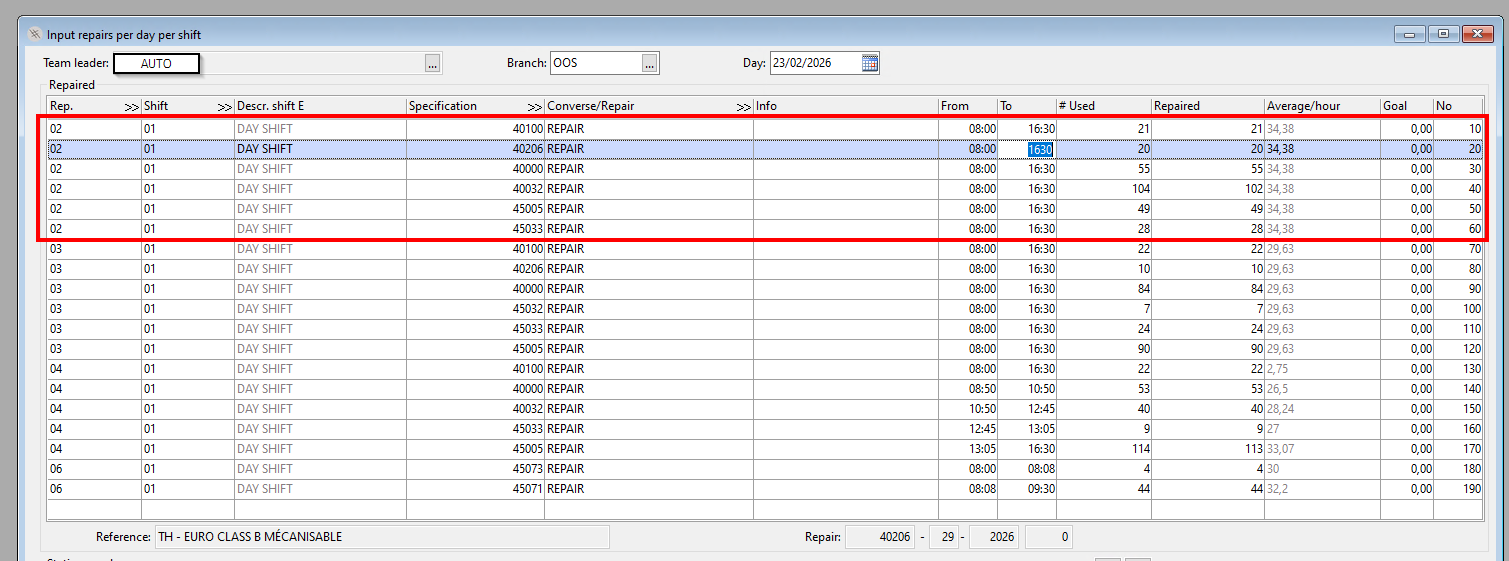
(1) You need to enter the team leader who fills in the report. We advise to make one report per day per branch. In companies that use a robot, AUTO needs to be selected. The manual entries can be added to the same AUTO report.
(2) select your branch
(3) select the date
Repair grid - Manual repair stations
(4) click on the first available line and enter de repair station
(5) select the shift
=> a pop-up will appear with the repairing information for this repair station that was entered. That is why you should not enter this report before you have entered the repairs
You need to fill in the time frame yourself. The quantities used and repaired will be adopted after your selection from the list in the pop-up. The Average/hour is calculated automatically. The line number is the very last column, this number is assigned automatically.
Repair grid - Robot
The information sent by the robot is gathered during the day in a table and imported into ePack during the night. So every morning you will see the report of the previous day.
For each repair station and for each specification a line is entered for the complete shift. The average/hour is the average calculated by diving the complete time of the shift by the complete amount of pallets repaired. On each line, the same weighted average is displayed.
You can correct this data at any time by overtyping, adding or deleting lines that are incorrect.
Employees
For each line, you need to enter the employees who worked at this station during this shift. The coefficient indicates if this employee worked at this station for the full amount of time or not. For example, a forklift driver can service two repair tables, to the coefficient per table will be 0.5 for this forkllift driver.
by clicking-right, you can copy this employee data from one line to another
In REC companies only, ou can click on the green ‘+’ button and then enter an employee’s name. ePack will calculate the coefficient automatically over the lines of that repair station.
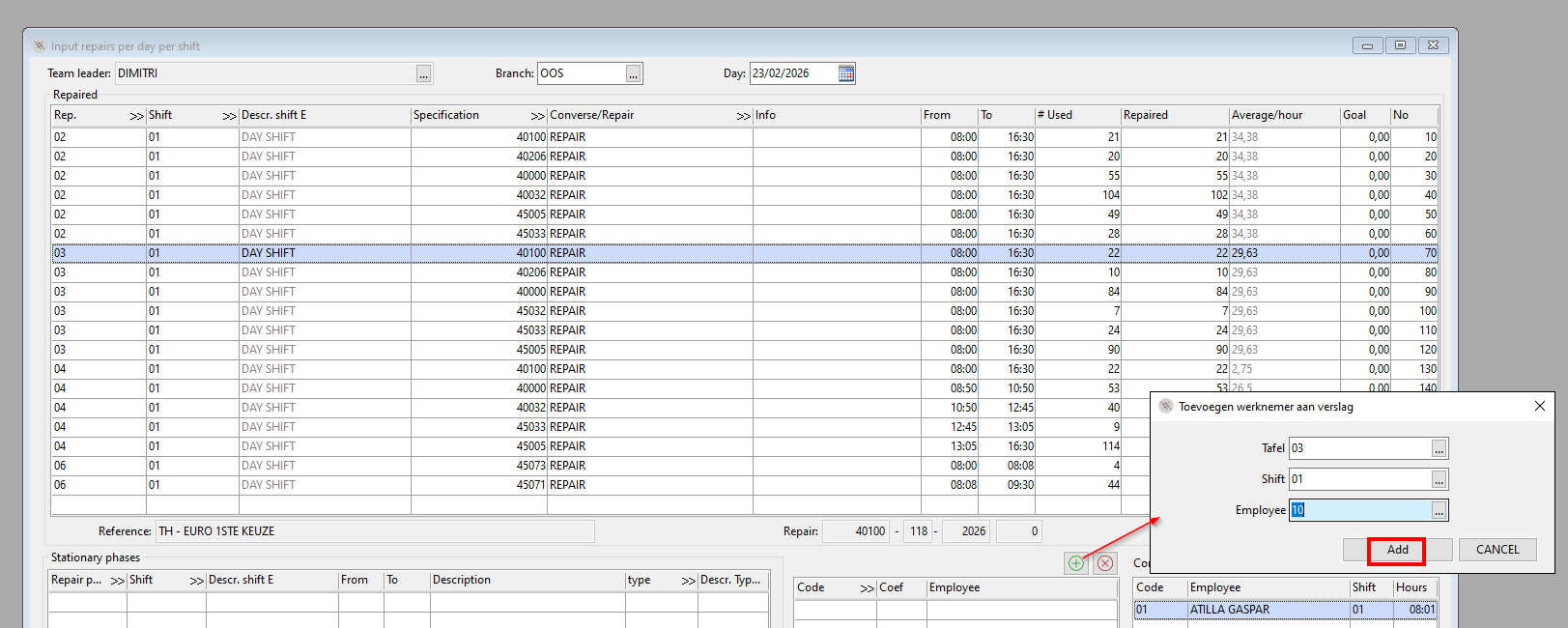
The calculation is carried out as follows:
total time worked during the shift / total number of pallets repaired = time required per pallet
time required per pallet × number of pallets repaired per line
(time required per pallet × number of pallets repaired per line) / total duration of the shift = coefficient
Secondary activities
This is the table to register all the activities that happened on site, but that were not part of the production. This is for example loading, unloading, cleaning,... . The secondary activities are not linked to the lines in the repair grid, but stand on their own.

This is how the line can be filled in:
- Activity: Using F4 you can select the correct activity.
- Specification: This is mainly used for the REC-sites. This is to be able to select a specification.
- Number: In case a specific number of pallets was involved, this can be filled in here.
- From -To: The period over which this task was done.
- Shift: Using F4 you have to select the shift in which the task was done.
- Machine: In case this task was done on a specific place/machine/workstation on site.
- Device: In case a specific device was used to execute this task. For example a forklift.
- Code: This is the code of the employee that performed this task.
Coefficiënt: Similar as in the worker table you can also assign part of the time of the employee over a periode to this line.
For example from 8:00 to 10:00 an employee devided his time over 'Clean' and 'production'. In this case you can enter a coëfficient of 0.5 to both task.
- 0.5 CLEAN= 1 hour
- 0.5 assigned to a production line= 1 hour
Entering the side activities 1 by 1 can appear to be a lot of work. In case you have recurrent side activities that happen every week on the same day. You can also predefine them in the overview of the shifts. In this case they will be automatically added to the daily production report at the moment that it is created.
Table Control per employee
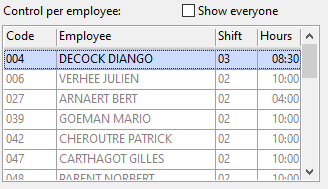
Once the daily production report is completed, perform the Hours Check to verify that the reported hours match the actual hours worked.
This table shows the total accounted hours per employee per shift. By default, only employees whose total differs from the shift hours are displayed. To view all employees, including those with exactly the correct hours assigned, select Show everyone.
Review the employees listed and confirm that their total hours are correct. If not, identify the discrepancy in the Worker or Side Activities table and adjust the relevant entry. The table recalculates automatically after each correction, ensuring accurate reporting hours.
Send the daily production report
Now you are confident that the daily production report is completed correctly, the last step that you have to do is to send the daily production report.
By doing this all the persons that are set in the parameters as recipients will receive this report.